
The program's name is GDDCALC. This tutorial describes two versions of GDDCALC, a Windows version and a Linux version. The Windows version is available now for download. The Linux version soon will be.
At the heart of GDDCALC is a C language routine named SOLPOS, which is public domain code written by Martin Rymes and distributed by the US National Renewable Energy Laboratory. We have utilized SOLPOS in all of our incident energy calculations. SOLPOS is available here.
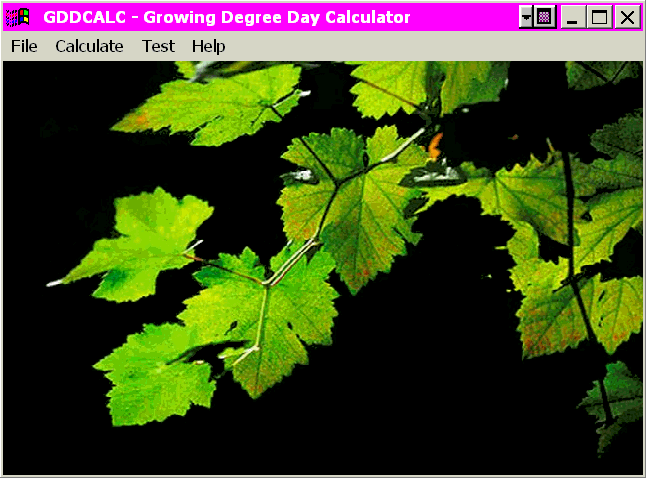
When you start GDDCALC you see the main window:
Like many graphical programs GDDCALC is controlled by means of a
menu bar along the top of the main window. The bar contains four menus,
and we can discuss GDDCALC's operations in terms of those four menus.
To see how GDDCALC works, just click on the four links below:
The File menu contains two items:
Exit has the expected meaning. Clicking on Exit terminates the
program and closes the main window.
Clicking on Locale brings up a dialog box in which you can enter
a set of five persistant geographic descriptors. If you provide these
descriptors (it is optional) they will be used in all subsequent calculations
until you change them.
The five descriptors describe a vineyard in terms of its position (latitude
and longitude), elevation above sea level, the direction in which it faces
(aspect), and its slope (tilt). These items, along with day, month, year, and
time of day are used to calculate the amount of sunlight that falls on a field
and its temperature response.
You have the option of either typing in the geographic descriptors by hand
every time you make a calculation, or setting them (semi) permanently with
this dialog. If you do set them here they will be used automatically in the
One day and Many days calculations described below. Whether
you set them or not, you can always type them in by hand in these calculations.
The descriptors that you set with this dialog are permanent in the sense
that they will be used in GDD calculations until you change them by using the
dialog to enter different descriptors. You can change them temporarily by
typing them by hand into any calculation dialog.
If you have read the discussion of
GDDCALC's algorithm that is elsewhere on this website, you will know
that the algorithm utilizes an empirical relationship between insolation
and temperature to calculate GDD. The data on which the algorithm is based
were obtained in western Oregon. It is doubtful that the relationships are
accurate outside this region. Thus when you enter the geographic descriptors
GDDCALC tests them to make sure they are within appropriate bounds.
GDDCALC requires
The first two descriptors limit you to a reasonable approximation of the
western Oregon and southwestern Washington wine country. Note that
longitudes by convention are negative west of Greenwhich. (However GDDCALC
will allow you to enter positive longitudes in [122, 124]; it will assume
you mean west longitude and change the sign automatically.) If you enter
a descriptor that GDDCALC does not like it will tell you so and allow you
to re-enter the number. An aspect of 0 degrees means that the field faces
due North; 180 degrees is due South.
The three buttons at the bottom of the window have the obvious meanings.
Clear will erase the numbers in the display (if any have been entered).
When you clear the display, any persistant descriptors you may have set
earlier also disappear and the dialog box closes. If you want to enter new
descriptors you will have to bring the box back (by clicking on Locale in
the File menu) and typing them in. Save will save the five descriptors
in the box so that you can use them later. You can save only one set of
descriptors at a time. Close will close the dialog box.
The calculate menu contains just two items:
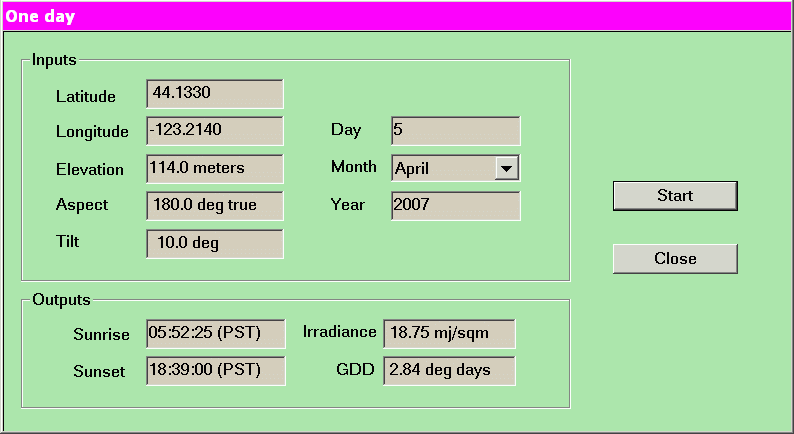
The One day calculation allows you to look at a single day. You
provide the program with inputs that describe a location and a time, and
it calculates the times of sunrise and sunset, the amount of sunlight
energy that falls on a square meter of that location during the day, and
the day's accumulated GDD.
Note that we have described a vineyard in terms of its latitude and
longitude, the direction in which it faces, and the slope of the ground.
(If the slope or tilt is zero the direction has no effect.) The screen
window in which this happens is shown here:
Initially, the four geographic inputs will either be blank or will be
supplied from the persistant descriptors that you may have entered via
File/Locale. In either case (whether you have set persistant descriptors
or not) you can also type them by hand. Day, month, and year, however,
must always be filled in by hand; they are not part of the persistant
descriptors. The field described in the window above is near Eugene,
faces south, and is tilted 10 degrees. Energy is given in millions of
joules (megajoules) per square meter.
The date you fill in must lie in the range 1950 through 2050. Dates
outside that range will cause the program to fail.
After entering the inputs you press the Start button and the
program displays the outputs. You then have an opportunity to modify the
inputs (choose a different day, for example, or a different tilt) and
press Start again. Pressing Close closes the window.
As noted elsewhere here, all measurements are metric. In particular, the
degree days are Celcius degree days. A Celcius degree day is 9/5ths
of a Fahrenheit degree day.
We note also that the algorithm that calculates GDD has been validated
with measurements made in Oregon west of the Cascades. For this reason we
would not expect it to give accurate results outside this region. In fact
if you provide geographic descriptors that are outside the western Oregon,
southwestern Washington region, the program will reject them. For more
information, see the discussion above under File/Locale.
However, the real focus of this software is the Many days option.
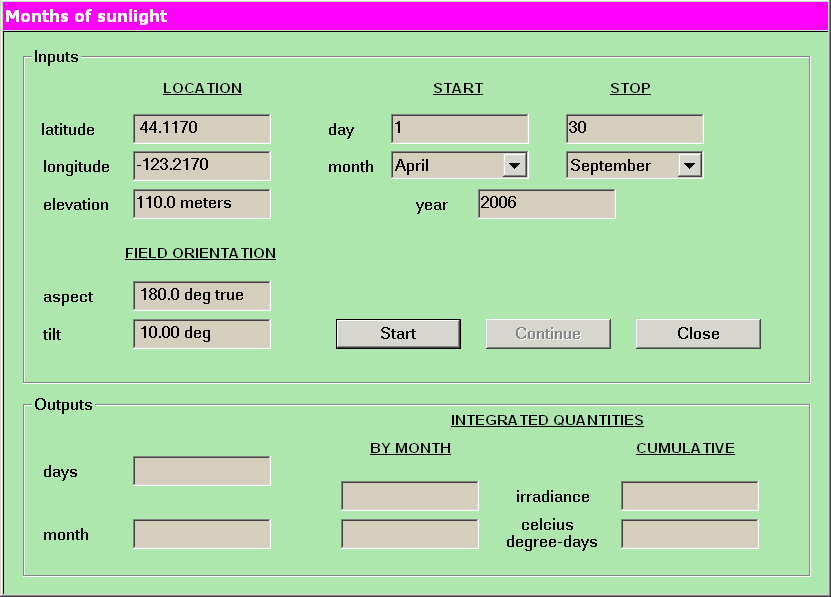
Clicking on Many days produces the following window, which (in this
instance) the user has filled in to produce a calculation that will show
accumulated GDD and sunlight energy for an entire growing season - April
through September.
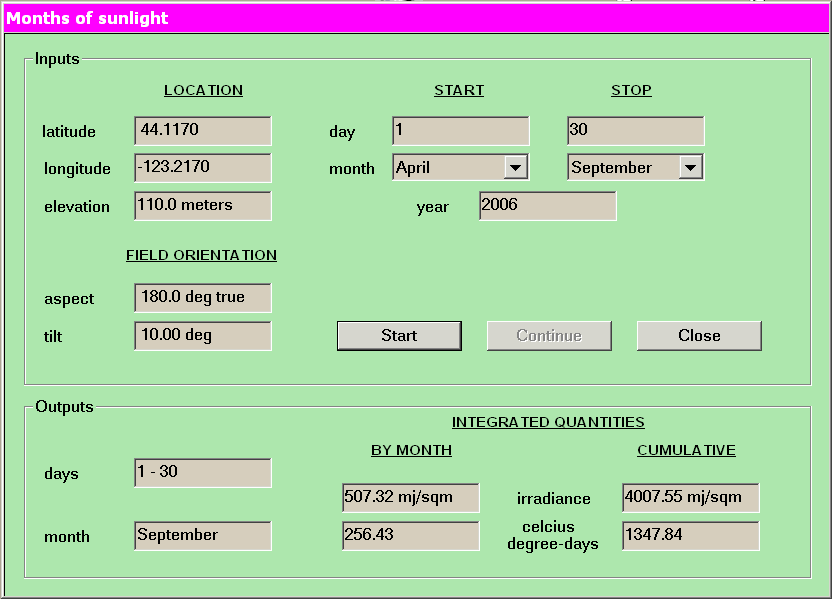
To operate this tool, click on Start. This will cause the program to
calculate the incident energy and associated GDD during the first time interval -
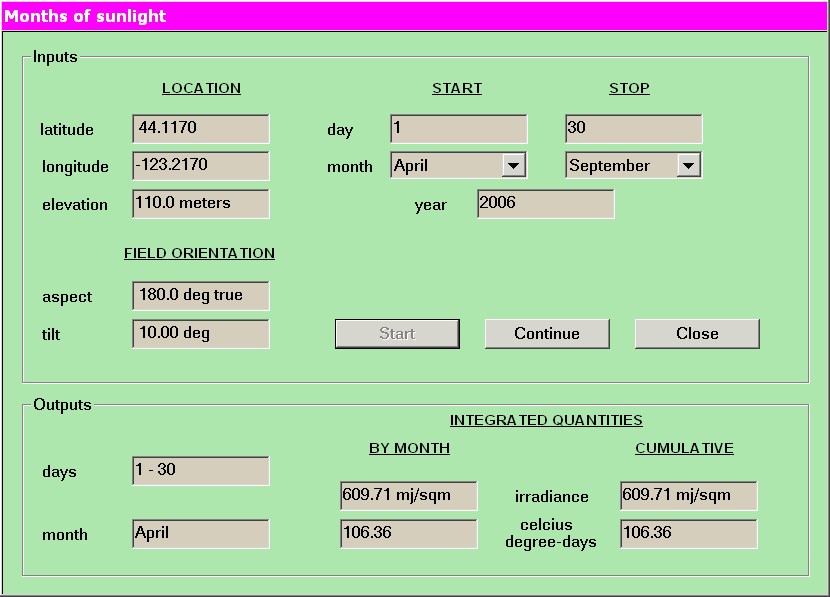
which in this example runs from 1 April 2007 through 31 April. The result is shown
here:
Note that the Start button is now greyed out and the Continue
button has been enabled. In the outputs section the monthly and cumulative
amounts are the same, because only one month has been analyzed so far.
Next, press the Continue button. This will advance the analysis by one
month. The output area will then show incident energy and GDD for May on the
left and combined energy and GDD for April and May on the right. Press the
Continue button again to advance the analysis through the end of June.
Continuing in this way, month by month, you will eventually get the window below,
which shows incident energy and GDD for the final month and for the entire
six-month growing season:
This final window shows that the field, which is near Eugene, facing due south
and tilted 10 degrees into the sun, receives nearly 1400 Celcius growing degree
days during the April - September season and thus is a reasonable candidate for
a vineyard. Given good soil and drainage one could expect to grow grapes at this
site.
Notice that the Continue button is now greyed and the Start button
has been enabled. At this point the calculations can restart with different
inputs, if you wish. As with the One Day calculation the geographic
inputs will be copied from your preferences (if you provided them) but you can
also change them by hand.
Although in this example we have looked only at whole months, you need not
begin the initial month on day 1 or end the final month on its last day. We
could, for instance, have run the calculation from 10 April through 15 September.
The Test menu contains three items:
Each of the three tests is an effort to make sure that the software works
correctly on your computer after you download it. This is never guaranteed
(paricularly if you compile the program yourself from source code) so we
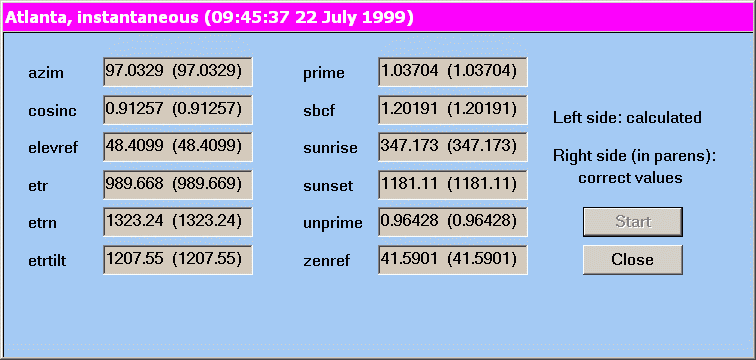
have provided a way for you to test the software. The first test, One
instant, calculates instantaneous values of a number of internal variables
in SOLPOS, NREL's solar position and intensity routine that lies at the center
of GDDCALC's calculations. (The instant chosen happens to be 09:45:37 on 22
July 1999, at Atlanta Georgia; the test is supplied by NREL, which is
located in Atlanta.) When you choose this test GDDCALC produces the following
window:
Initially the 12 small grey windows are empty. When you press the Start button
the test calculates 12 numbers; you see them above at the left side of each of
the 12 small windows. The correct value for each number is shown in parentheses
to the right of each calculated value. If the two differ by no more than the
rightmost one or two digits, the software is working correctly. We do expect
some variation in different computers and different operating systems,
particularly if you compile the source code yourself. If this test fails you
know that the error is in the way you have implemented GDDCALC.
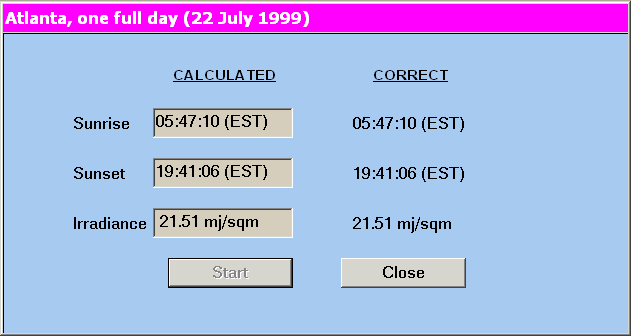
The second test, One day calculates the amount of sunlight energy per
square meter at Atlanta during an entire day. (It is the same day that the
first test samples instantaneously.)
Again, the three small grey windows are empty initially. When you press the Start
button GDDCALC calculates the times of sunrise and sunset on the test day, and the
total amount of sunlight energy per square meter during that day, and places them
in the three small windows. If the calculated and corresponding correct values are
substantially different, there is a problem in the portion of the program that
sums energy over one day.
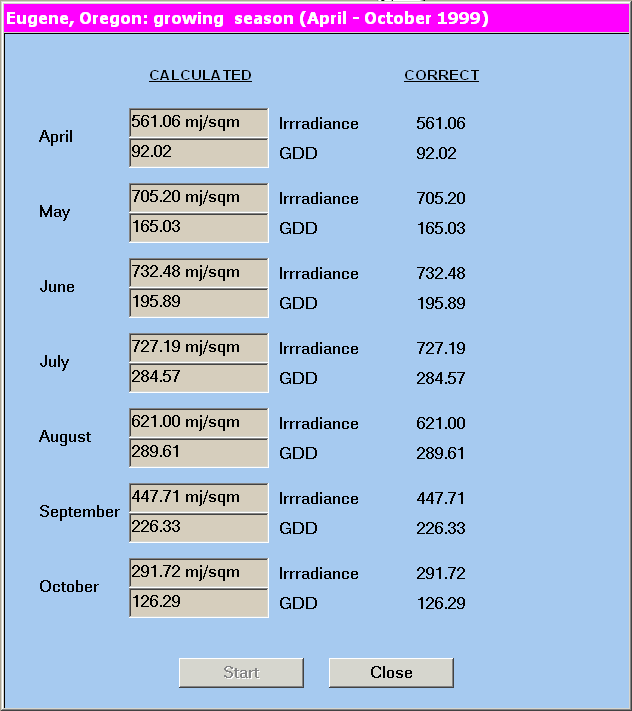
The third test, which you call up by clicking on Growing season, produces
the following window. This window shows calculated and correct GDD and insolation
at Eugene, Oregon month-by-month from April through October:
Initially, when this window appears, the "calculated" column is blank. You
begin the calculation by pressing the Start button at the bottom of the
window. The blanks are then filled in and you can compare the calculated
values on the left with the correct values on the right.
The Help menu contains just two items:
The first item, Tutorial, brings up a window that contains an
arrangement of the material you are now reading.
The second item produces an ordinary "about box".
The File Menu

latitude in [42, 47] degrees
longitude in [-124, -122] degrees
elevation in [0, 500] meters
aspect in [0, 360] degrees
tilt in [0, 30] degrees
The Calculate Menu
The Test Menu
The Help Menu